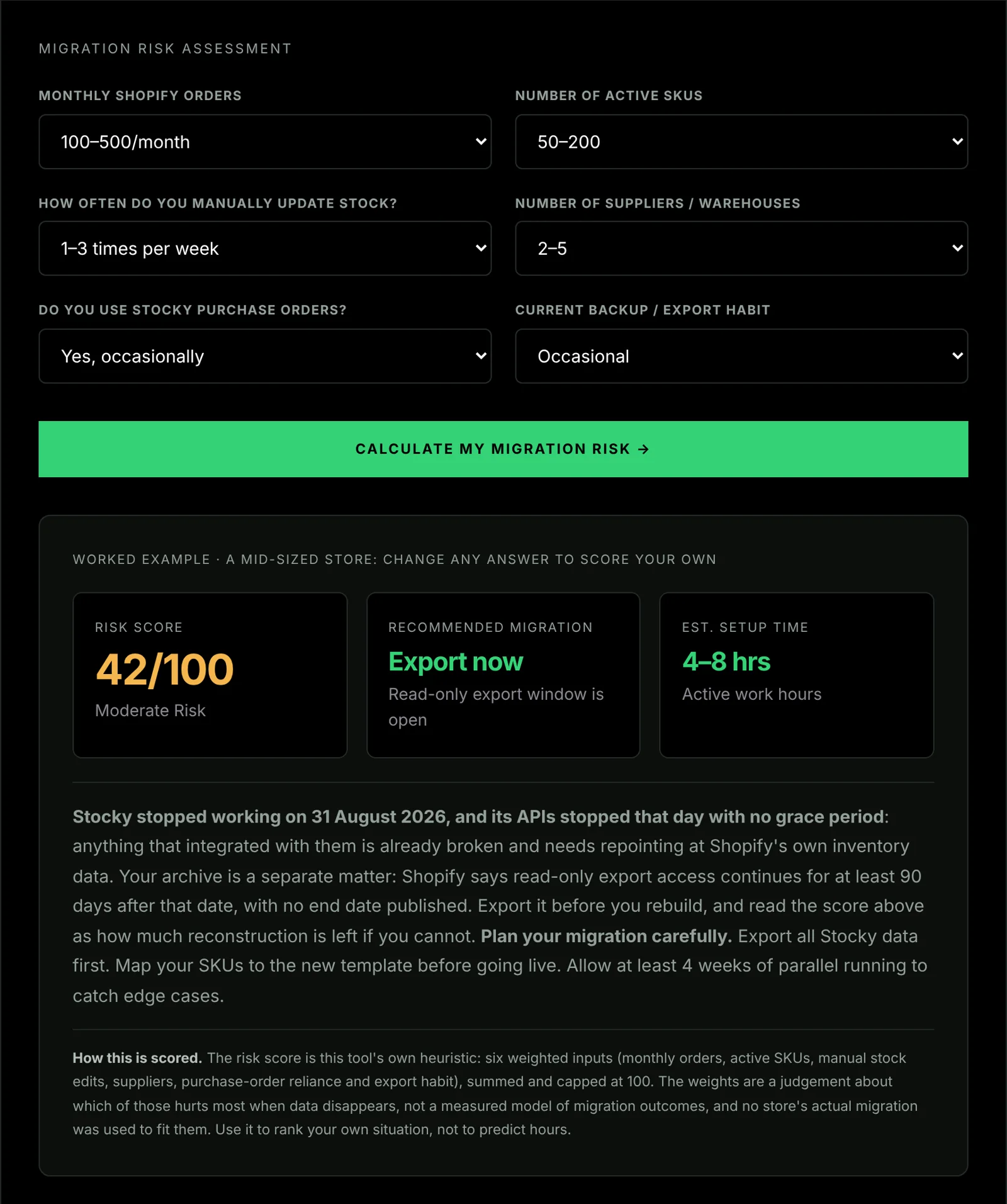
Shopify set August 31, 2026 as Stocky’s end of service, and nothing held inside the app was migrated to Shopify Admin. Shopify removed Stocky from the App Store on February 2, 2026, the August 31 date is confirmed and it has passed.
What happened on that date came in two halves, and almost everything written about the shutdown collapses them into one. Stocky’s APIs stopped dead on August 31 with no grace period: any third-party tool, dashboard or automation reading from them broke that day rather than degrading. Your data did not go with them. Shopify’s own transition guidance says read-only access to export it continues for at least 90 days after the shutdown date. That is a floor Shopify stated, not an end date it published. Counted from 31 August, 90 days runs to 29 November 2026, the earliest date the window could close. Treat that as your deadline: export before Black Friday weekend. (Shopify, “Transitioning from Stocky”, read 10 September 2026.)
Your Shopify inventory levels are safe: they live in Shopify Admin, not in Stocky. But years of purchase order history, stocktake records, supplier contacts and demand data exist only inside Stocky.
This guide tells you exactly what to export, how to export it, and what to do with the data afterwards. If you are still choosing what replaces Stocky, the Stocky alternatives guide compares every option.
What Data Stocky Holds: and What Is Stranded
First, understand the distinction between Shopify-owned data and Stocky-owned data. They are stored separately.
Data that lives in Shopify Admin (never affected by the Stocky shutdown):
- Current inventory levels per variant per location
- Product details, SKUs, barcodes
- Order history in Shopify
- Customer records
- Shopify Analytics reports
Data that lives in Stocky (export-only since August 31, 2026, at least 90 days, end date unpublished):
- Purchase orders: Every purchase order you’ve created in Stocky: supplier name, products ordered, quantities, unit costs, expected delivery dates, received quantities, outstanding balances. This is your entire supplier procurement history.
- Stocktake records: All historical stock counts you’ve recorded in Stocky. If you’ve been using Stocky to document periodic inventory counts, this history disappears entirely.
- Transfer records: Inventory movements between locations recorded via Stocky transfers.
- Demand forecasting data: Stocky’s sales velocity analysis and forecasting data is proprietary to the app and is not exportable in a usable format.
- Supplier database: Contact information, lead times, and payment terms stored directly in Stocky’s supplier records, not synced to Shopify.
How to Export Your Stocky Data: Step by Step
Do this in the session you are reading this. Stocky is read-only now rather than closed, and read-only is enough to export: Shopify puts that window at “at least 90 days” past August 31, 2026 without naming the day it shuts.
Export 1: Purchase Orders
Purchase orders are your most valuable Stocky data. This is a complete record of what you’ve bought, from whom, at what price, and when.
In Stocky: Purchase orders → top-right menu → Export
Select date range: set to your earliest purchase order date through today. Export format: CSV. Download the file immediately.
What the export contains: purchase order ID, supplier name, product, variant, SKU, quantity ordered, quantity received, unit cost, total cost, creation date, delivery date, status (open, received, cancelled).
What it doesn’t contain in the CSV: supplier contact details (email, phone, address): these are in the supplier database and require a separate manual export.
Save to: Google Drive folder named Stocky_Export_[date]. Do not save only to local drive: if your laptop is damaged or replaced, you lose the backup.
Export 2: Stocktakes
Historical stock count records from Stocky. Important if you reconcile inventory periodically or have accounting requirements for stock valuation at period end.
In Stocky: Stocktakes → select each completed stocktake → Export
Stocky exports stocktakes individually, not as a batch. If you have many historical stocktakes, export the most recent 12–24 months as a priority, then work backwards.
What the export contains: stocktake date, product, variant, SKU, expected quantity, counted quantity, variance.
Export 3: Transfers
Inventory transfers between locations recorded in Stocky.
In Stocky: Transfers → Export
If your store uses multiple locations and has been recording transfers in Stocky, export this while the read-only window is open. If you use single-location inventory, transfers may be empty.
Export 4: Supplier Database (Manual)
This is the step most merchants miss. Stocky’s supplier records contain contact details, payment terms, and lead times that do not export cleanly via CSV.
In Stocky: Suppliers → open each supplier record
Manually copy to a Google Sheet: supplier name, contact name, email address, phone number, address, payment terms, typical lead time in days, minimum order value. This takes 5–30 minutes depending on how many suppliers you have, but this data may not exist anywhere else.
Template columns:
Supplier Name | Contact Name | Email | Phone | Address | Payment Terms | Lead Time (days) | MOQ | NotesExport 5: Product Cost Data
If you have entered cost prices (COGS) into Stocky, verify these are also reflected in Shopify’s native product cost fields while read-only access lasts.
In Shopify Admin: Products → select a product → Cost per item field.
Stocky and Shopify sync cost prices in most cases, but verify your top 20–30 SKUs by value have accurate costs in Shopify Admin. This matters for your P&L reporting going forward.
What to Do With Your Exported Data
Store It Permanently in Google Drive
Create a folder structure:
Stocky_Export_2026/
  ├── Purchase_Orders_AllTime.csv
  ├── Stocktakes_2024_2026.csv
  ├── Transfers_AllTime.csv
  └── Suppliers_Manual_Export.csv
Share this folder with the named people who manage procurement. Do not set it to “Anyone with the link”: these files contain supplier contacts and unit costs. To protect against losing access to one Google account, keep a second copy somewhere you control, such as a download to a backed-up computer.
Import Historical Purchase Orders Into Your New System
Your new inventory system (whether Stocky Swap’s Google Sheets approach or a paid alternative) should have a record of opening stock positions. The most practical approach:
- Open your Purchase Orders CSV export
- For each product, find the most recent received quantity and reconcile against current Shopify inventory levels
- Use this to set your opening stock figures in Sheet 2 of the Stocky Swap inventory ledger (Column C: Opening stock)
This gives your new system a starting point based on real historical data rather than estimates.
Connect Your Supplier Data to Your New Workflow
Your manually exported supplier database becomes the Config sheet in your new Google Sheets inventory system. Add columns for reorder point and reorder quantity alongside the contact information. When the automated low-stock alert fires (from your Make.com scenario), you have the supplier contact immediately to hand in the same system.
Deploy Your Replacement Before You Export
Shopify itself still records every order and adjusts stock levels, so nothing is lost there. What stopped on 31 August was anything Stocky did on top: its purchase orders, stocktakes and reports. If you want your own running order log outside Shopify, it only covers orders from the day you switch it on, so starting it early gives it more history.
The correct sequence:
- Deploy Stocky Swap now: no-code setup, on a free Make.com account. This starts logging every new order immediately.
- Export all Stocky data: using the steps above, before 29 November 2026 at the latest.
- Import historical data: use your exports to populate the opening stock figures in your new Sheet.
- Uninstall Stocky only once every export is saved and opened to check it is complete. After uninstalling you cannot reinstall it.
Stocky Swap logs every new paid order from the moment it is live. Your exported Stocky data covers what came before. Stock on hand stays in Shopify Admin throughout.
If You Need More Than Basic Order Logging
Stocky Swap covers one job: every paid order logged automatically to a Google Sheet you own. It does not calculate stock on hand; Shopify Admin does that. What it doesn’t replace:
Purchase order management: creating and tracking supplier orders. For this, your exported supplier database becomes a manual Google Sheets purchase order tracker. Not as slick as Stocky’s UI, but functional and free.
Demand forecasting: Stocky’s algorithm-based forecasting has no direct free equivalent. The sales velocity analysis formulas in the Ultimate Inventory Guide cover a manual approach using SUMIF formulas on your order log.
Barcode scanning for stocktakes: if your team physically scans items during stock counts, you’ll need a paid app with barcode scanning support. Stocky Swap does not cover physical scanning workflows.
For stores where these features are essential, paid apps are worth evaluating: Prediko’s Starter plan was $49 a month and Inventory Planner showed a quote form rather than a price, both on their Shopify App Store listings when read on 25 September 2026. Shopify Admin now handles purchase orders, transfers and adjustments natively, which covers much of what many stores used Stocky for.
If you only do one thing
Shopify set 31 August 2026 as Stocky’s end of service. The test that matters is not what today’s date is: it is whether Stocky still opens in your admin. Read-only export access is meant to run for at least 90 days past that date, but stores that uninstalled after the 2 February 2026 delisting (Shopify, “Transitioning from Stocky”, read 10 September 2026) could not reinstall it and were on the far side of this months early.
If Stocky still opens, do this now:
- Open Stocky
- Export your Purchase Orders as CSV
- Save the file to Google Drive
That single action preserves your most valuable Stocky data. Everything else (deploying a replacement, importing historical data, setting up your new workflow) can follow. The export is the only step on a clock nobody outside Shopify can see the end of.
If Stocky no longer opens, rather more is reconstructible than most people assume: current stock levels, order history, products and customers all live in Shopify and were never at risk. The Stocky recovery path covers what survives, what is genuinely gone, and the order to rebuild it in.